
Pi-hole DNS Sinkhole
Deploying Pi-hole on a Raspberry Pi for network-wide DNS filtering, query visibility, and tracker blocking.
Overview
Pi hole is a DNS sinkhole. Pi-hole monitors and matches DNS queries against a list and blocks them to prevent unwanted content. To function correctly, Pi-hole needs to be the primary DNS query resolver.
Benefits
- Fairly simple to install
- Ad blocking
- White and Black listing
- Domain Query Logging
- DHCP service
- Scalable
Setting Pi-hole on Raspberry Pi
It can be deployed as a docker container or on a Linux system. Both method is simple.
Docker Install (Installation 1)
- Install & verify the docker container on your Raspberry Pi OS
sudo apt install docker.io
service docker status- Create a docker-compose file inside a directory where you want to store all the pi-hole configuration files, such as mkdir /opt/pihole. Example File
# More info at https://github.com/pi-hole/docker-pi-hole/ and https://docs.pi-hole.net/
services:
  pihole:
    container_name: pihole
    image: pihole/pihole:latest
    # For DHCP it is recommended to remove these ports and instead add: network_mode: "host"
    ports:
      - "53:53/tcp"
      - "53:53/udp"
      - "67:67/udp" # Only required if you are using Pi-hole as your DHCP server
      - "80:80/tcp"
    environment:
      TZ: 'America/Chicago'
      # WEBPASSWORD: 'set a secure password here or it will be random'
      # Volumes store your data between container upgrades
    volumes:
      - './etc-pihole:/etc/pihole'
      - './etc-dnsmasq.d:/etc/dnsmasq.d'
      #   https://github.com/pi-hole/docker-pi-hole#note-on-capabilities
    cap_add:
      - NET_ADMIN # Required if you are using Pi-hole as your DHCP server, else not needed
restart: unless-stopped- Modify the script.
- We can make some changes, such as if I will not be using the DHCP service from pi-hole, I can remove the ports for that.
- A custom password can be set here “WEBPASS..” for the web interface.
- If you already have services running on port 80, make sure to change it to something else.
- Run the command to start pi-hole
sudo docker-compose up -d "or"
sudo docker compose up -d
One-step Installation (Installation 2)
In this method we can configure pi-hole in raspberry pi with just a simple command.
This command will install pi-hole and run it on your system not in a container.
curl -sSL https://install.pi-hole.net | bashI prefer native installation over the Docker option. Running Pi-hole natively allows you to take advantage of automated tasks and Unbound.
The documentation below explains how to set up Unbound (a recursive DNS server) locally alongside Pi-hole.
https://docs.pi-hole.net/guides/dns/unbound/
Pi-hole configurations
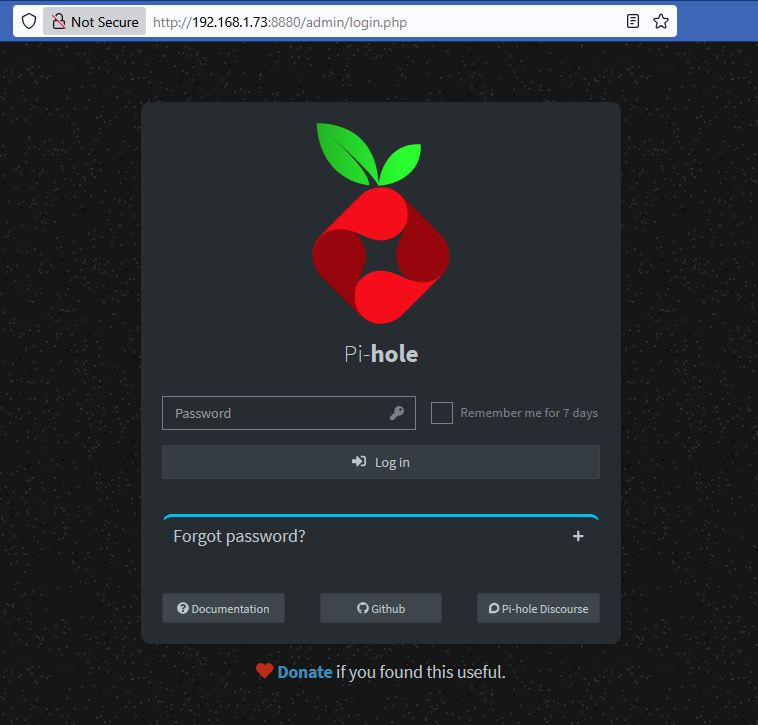
You should be able to access your pi-hole login page using your browser.
Make sure to use the format http://IP:PORT/admin & use the password you created, if you hadn’t then a random password should have been generated when you used the docker-compose command.
As you can see, pi-hole stated working. I have a larger number of queries blocked because pi-hole was up for a long time for me.
On the left side we have multiple tabs, take some time to explore all of them, by configuring them you can enhance the performance and set it in a best way that can suit your environment.
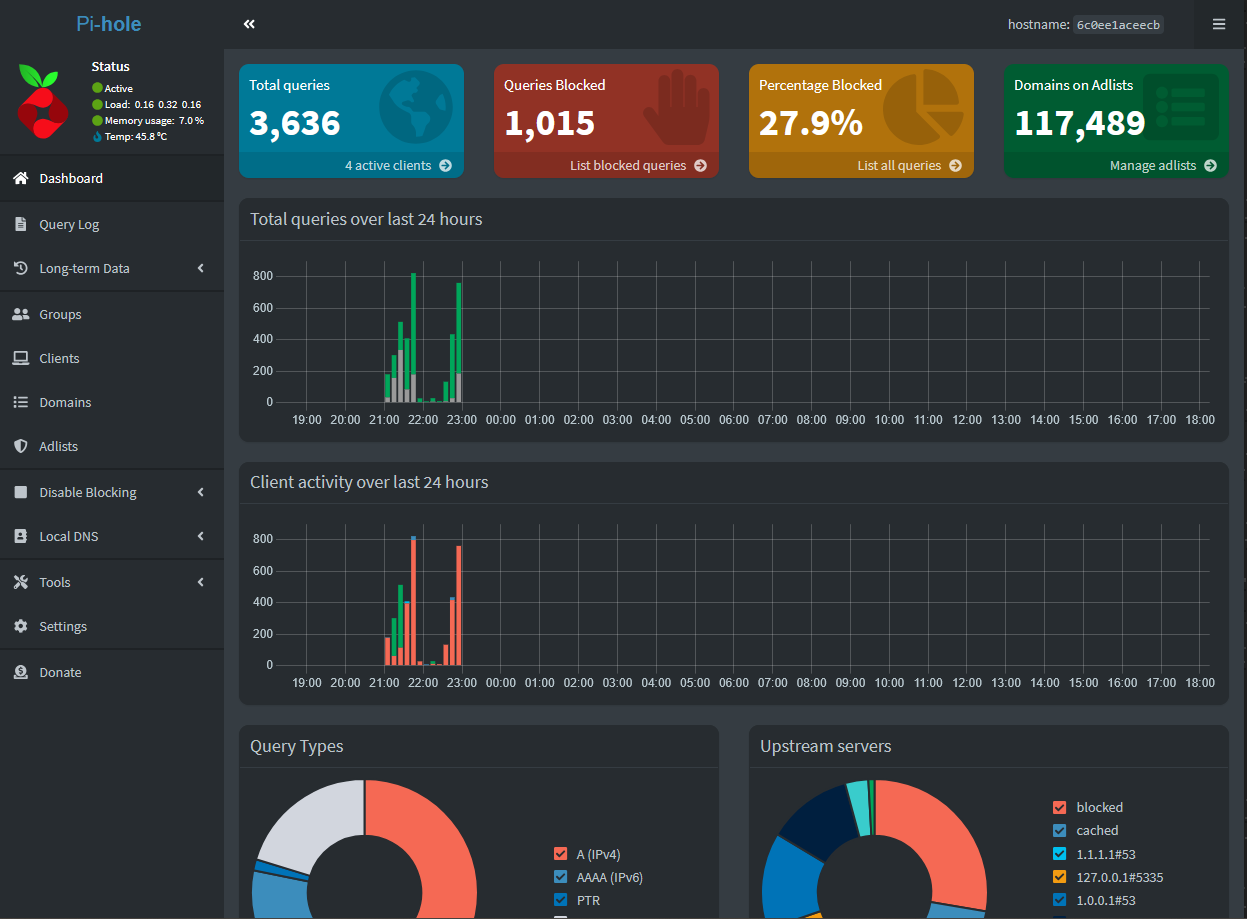
To enhance ad-blocking and tracker blocking we can import external list to the “Adlists” tab.
There are lots of Adlists available online, some are specifically for pi-hole.
Optional
https://docs.pi-hole.net/main/origins/
It is worth reading it tells the underlying programs and technologies used by Pi-hole and is a very good example if you are looking to build something like this by yourself.